
Sync you can see
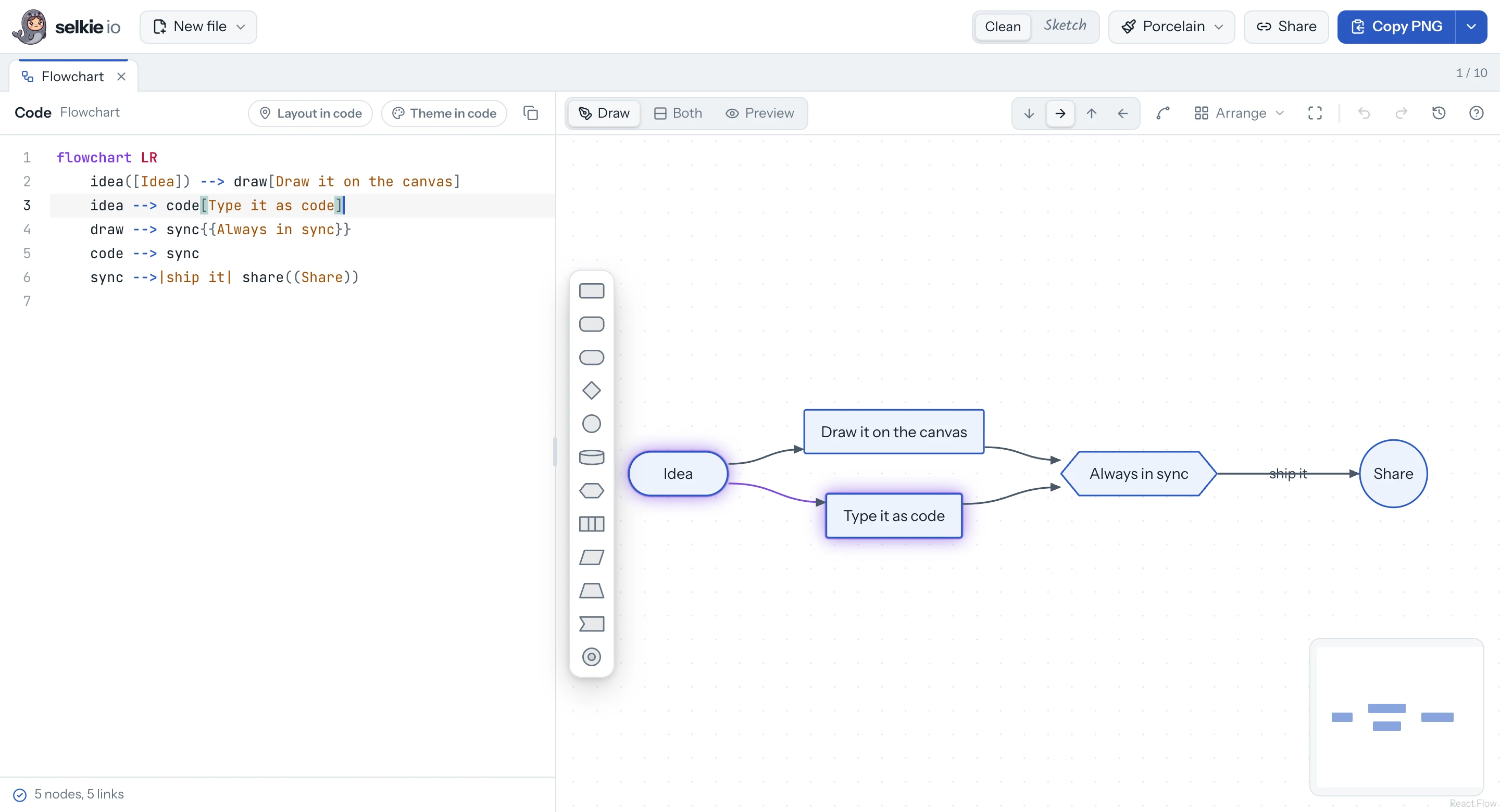
Select something on the canvas and its lines light up in the code. Put the cursor on a line and its steps light up on the canvas. Lines the canvas rewrites flash briefly.
Mermaid diagrams, drawn and coded
Draw on a canvas and edit Mermaid code side by side. Change the drawing and the code is rewritten; change the code and the drawing follows.
Runs in your browser · plain Mermaid in, plain Mermaid out

Why the name
In Scottish and Irish folklore, a selkie is the same being in two forms: a seal in the sea, a person on the shore.
Here, every diagram is code on one side and a drawing on the other. Same diagram, two forms, and they never drift apart.
A([Idea]) --> B[Sketch]The film
From an old sea legend to a live drawing that writes its own code. Sound on.
Features
The canvas and the code are two views of one diagram. Whatever you change on one side shows up on the other, right away.
Select something on the canvas and its lines light up in the code. Put the cursor on a line and its steps light up on the canvas. Lines the canvas rewrites flash briefly.
Drag shapes from the palette, pull a link from a step's dot into empty space, or press Tab for a linked step. Links go solid, dotted, thick or invisible, with arrows, circles or crosses.
Select steps and press ⌘G for a subgraph. Drop a link's end on a step to glue it to the best side, or on one of its points to pin it there.
Each layout animates into place, stays fully editable and is a single undo step.
Click any step in the history to go back to it. ⌘Z and ⇧⌘Z step through.
Copy a PNG to the clipboard, or download PNG (1×–4×, transparent if you like), SVG or .mmd. Fonts are embedded.
Up to ten diagrams open at once, each in its own tab with its own undo history. Everything is autosaved in your browser, and a snapshot link shares a diagram with its layout.
Draw and change them on the canvas, each with its own palette and tools. The code updates as you draw; the drawing follows when you type.
 FlowchartCanvas
 Class diagramCanvas
 Mind mapCanvas
 State diagramCanvas
 ER diagramCanvas
Sequence diagrams, Gantt charts and pie charts get editors that work directly on the code lines, so your comments, spacing and everything else you wrote stay untouched.
 Sequence diagramOwn editor
 Gantt chartOwn editor
 Pie chartOwn editor
Git graphs, timelines, journeys, charts, kanban boards, C4, architecture and the rest: every diagram Mermaid can read renders in the live preview, the beta types and ZenUML included. Edit them as code and watch the preview follow.
 Git graph
 Timeline
 User journey
 Quadrant chart
 XY chart
 Kanban
Each theme styles the app, the canvas and the rendered diagram. Or flip on the hand-drawn Sketch look. Theme in code writes it into the frontmatter, so other renderers use the same colors.
 Abyss
Abyss Porcelain
 Kelp
Kelp Synthwave
 Blueprint
 Sakura
 Ink
Ink Ember
Ember Classic Mermaid
 Sketch look
Live together
Code, drawing and preview update live for everyone, also when two people type at the same moment.

Still plain Mermaid
By default the code stays plain Mermaid and positions live in your browser. Two toggles above the code store more in the code itself, and it remains valid Mermaid that other tools render as usual.
title are kept.---
config:
theme: base
look: handDrawn
themeVariables:
primaryColor: "#123039"
---
flowchart TD
A([Idea]) --> B[Sketch]
%% @layout v1
%% node A 120 40
%% node B 120 160
%% edge A B 0 200,100 to:0,-1
%% @end
Draw it, type it, share it. selkie io keeps the two in step.
Open selkie io